AI Image Editor
Studio Mode

Uncensored AI Image Editor

Upload an image and describe what you want to change. Choose an editing model for the look, controls, and resolution you need.

Drop image file for AI editing

or click to browse • Max 4 images, 4MB each

Reference them as image 1, image 2, image 3, image 4 in the prompt. Minimum dimensions are 272x272 pixels.

Try an edit prompt

Image SizeWan 2.7 preset sizes
Number of Images1 × 10 = 10 credits
1
Enable Prompt ExpansionDefault: On
Enable Safety CheckerDefault: Off
Example
Example1/3

Prompt ideas for your image edit

Start with one change and tell the editor which details to keep. The images below illustrate three directions you can try on your own source.

Product photography example

Replace the background

Give a product photo a cleaner setting while keeping the product and its label recognizable.

Replace the background with a soft gray studio sweep. Keep the product, logo, label text, scale, and framing unchanged. Add a soft contact shadow beneath the product.
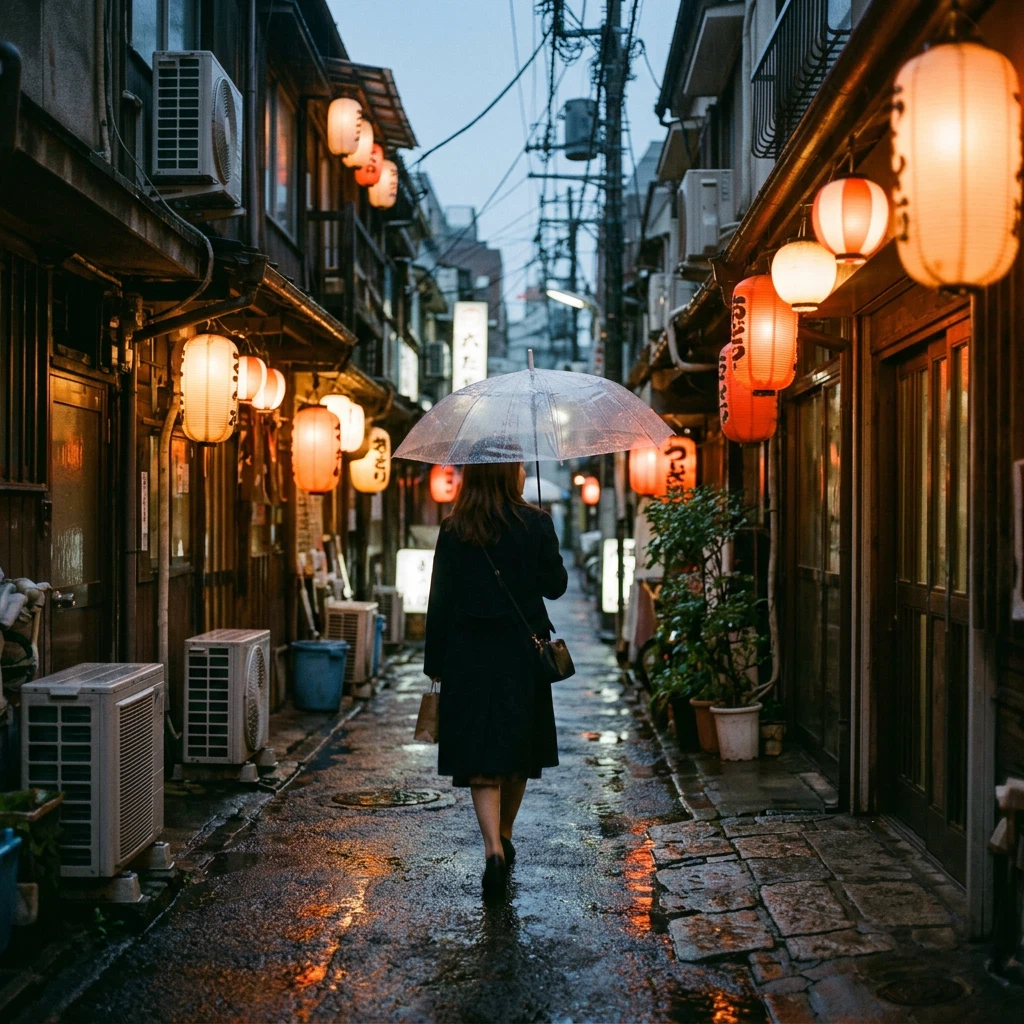
Rainy city street with lights reflected in the pavement

Change the lighting

Set the mood of a street scene by giving the model a time of day and a light source.

Relight this scene as a rainy evening with warm shop lights and reflections on the pavement. Keep the original camera angle, street layout, and main subjects.
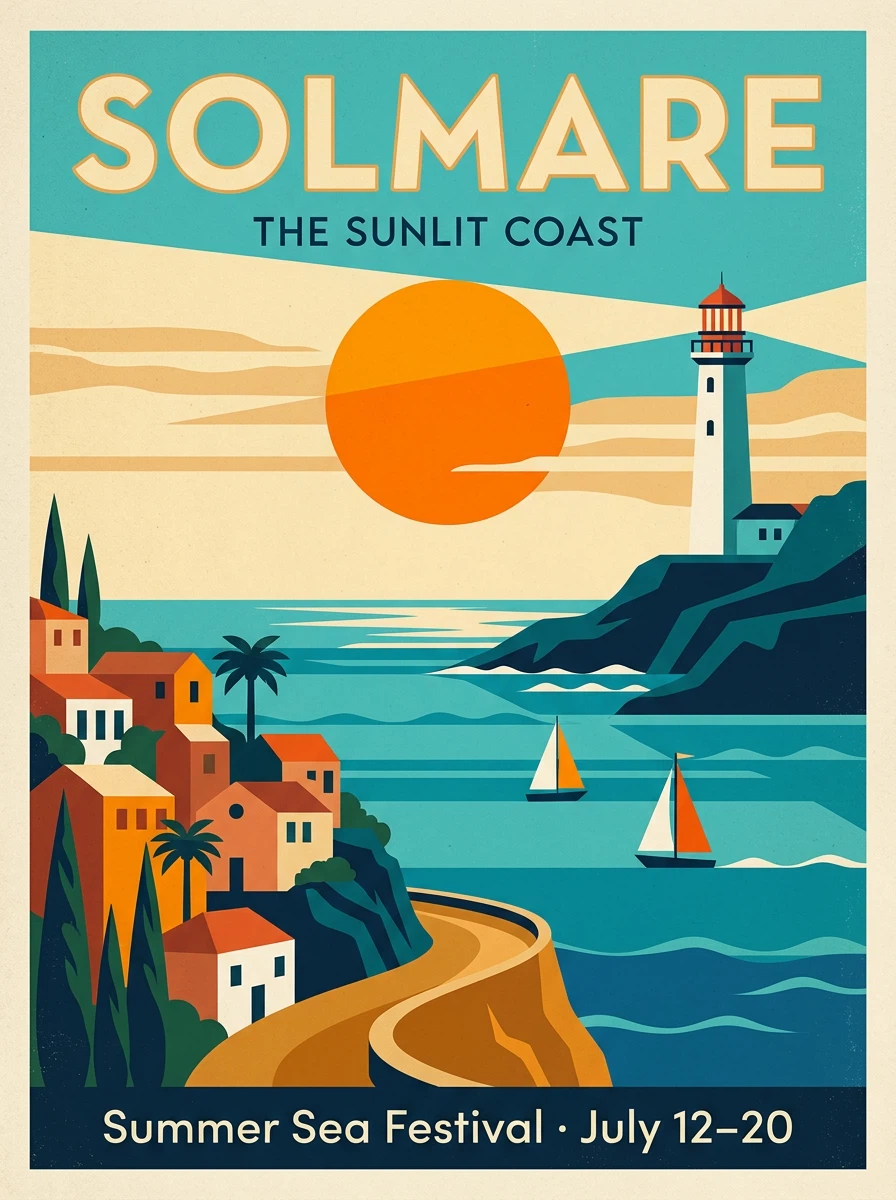
Illustrated travel poster

Restyle as an illustration

Carry the composition of a landscape into a new style, such as a vintage travel poster.

Restyle the source image as a vintage travel illustration with broad color shapes, subtle paper grain, and a limited palette. Keep the skyline and main landmarks in place. Do not add text.

How to edit an image with AI

  1. 1

    Add a source image

    Choose a clear image you own or have permission to edit. Keep enough space around the area you want to change.

  2. 2

    Describe the change

    Name the part to change and say which details should stay. Choose a model and review its available settings.

  3. 3

    Generate and review

    Check the new image against the source, especially faces, text, and fine details. Download the result or send it to Image to Video.

Uncensored AI Image Editor FAQ

How is an AI image editor different from an AI image generator?

The editor starts with an uploaded image and your instructions. A text-to-image generator starts with a description and creates the image from scratch.

Do all models have the same editing controls?

Available settings and content checks depend on the model. The editor displays the settings, input limits, and credit cost for the model you select. Your uploads must comply with Unbound AI's terms.

Can I change just the background or one object?

Yes. Identify the background or object in the prompt and describe what should stay the same. The model generates a new image, so review nearby details before downloading.

Does editing an image require credits?

Yes. Sign in to generate an edit. The studio shows the credit cost before you submit, based on your model and settings.