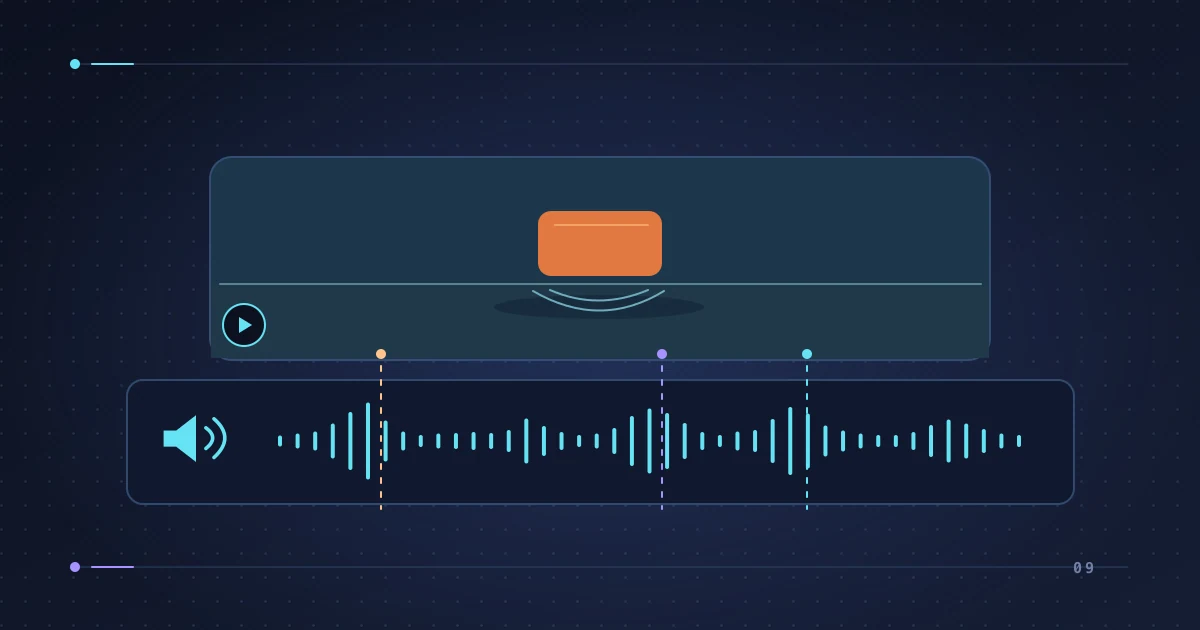
Write down when the action happens
Choose a short clip with a distinct visible action. Play it once and note the frame where a heel meets the floor, a cup hits a saucer or a drawer clicks shut. Give the first pass one clear sound to land.
Decide what surrounds that sound. In a quiet interior, soft room tone is enough. For an outdoor shot, think about the surface underfoot and how far the subject is from the camera. A close-up usually needs a different sense of distance than a wide shot.
Open Video to Audio and add the video file or its direct URL. Confirm the input plays. Choose a model and review its controls before adding the cue. Kling presents separate inputs for effects and background music. Other models can show a general prompt and, where available, separate duration settings.
Listen for the action cue
Try the tabletop example
Three sound prompts for common shots
Write the action, material and distance in that order. Treat a timestamp as a cue for your review, then verify the actual sound against the picture.
| Shot | Prompt to try | Cue to review |
|---|---|---|
| A step on a hard floor | One close, dry heel strike as the foot lands on the hard floor, followed by a softer toe contact. Very low indoor room tone. Keep the lead-in quiet and leave space after the step. | The heel strike should line up with the first contact. |
| An enamel piece on a tabletop | A crisp tap as the enamel piece hits the hard tabletop, then a softer second tap on the bounce. Keep the room tone very low and leave the last seconds quiet. | Listen for two distinct contacts. The first should be louder. |
| An outdoor wide shot | Light wind at a distance. Soft gravel underfoot only when a step lands. Keep the footsteps lower in the mix than in a close-up. Leave out speech and music. | Check that the ambience feels continuous and the step sits at the right distance. |
Check the sound with the image before export
Listen once at normal speed. If a cue feels late or early, scrub around that moment and listen again. Simplify the prompt to one sound and try a shorter source cut. For exact timing, align the sound in your editor before you assemble the full sequence.
When ambience overwhelms the action, keep the sound focused on the visible contact and add the softer bed later. If you hear unwanted dialogue or music, describe the quiet background in the main prompt or use the negative prompt field when the selected model offers it.
Keep your original clip and check the generated file before replacing anything in the edit. Confirm the next cut has room, especially if a sound rings out beyond the visible action.
Final listening pass
- The strongest sound matches the clearest visible action.
- Background tone is quiet enough to leave room for the next cut.
- There is no unwanted music or speech.
- The audio still reads on phone speakers.
Frequently asked questions
Can I add effects without adding music?
Describe the action sound and any ambience you need. If your chosen model has a separate background music field, leave it empty when you want an effects-only pass. Listen to the preview before using it.
Can I replace the dialogue with a translated voice here?
Use Video Dubbing for translated speech. This workflow is for effects and atmosphere around the visible action.
Next step
Open Video to Audio
Upload your silent shot and generate an audio pass from the visible action.