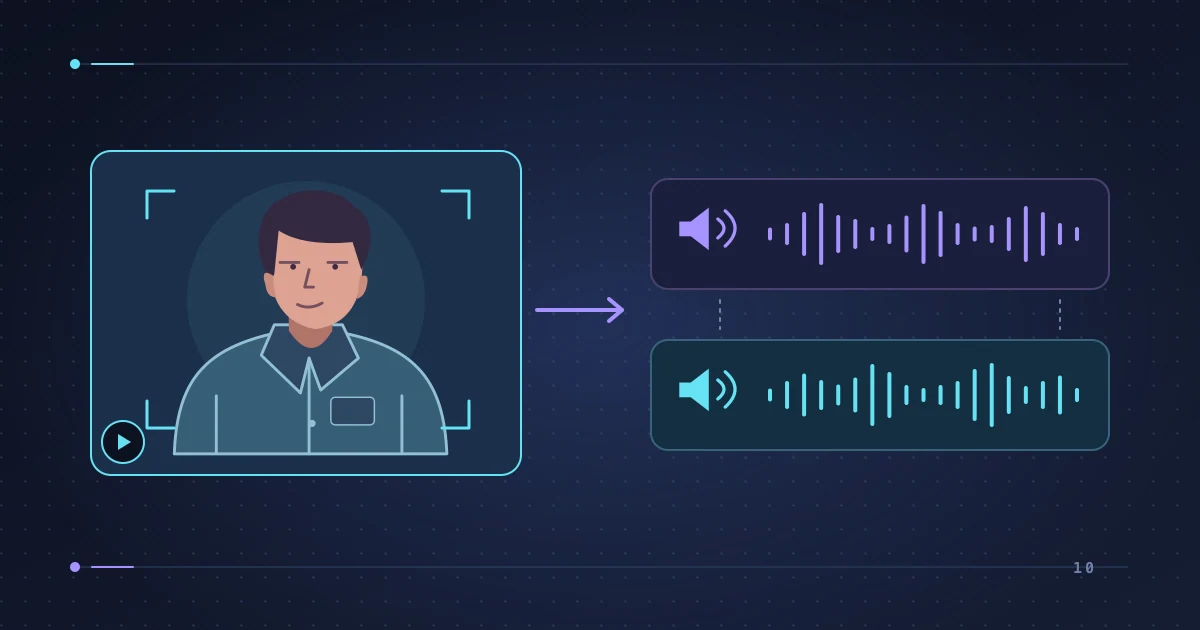
Pick a short clip with one clearly heard speaker
For a first test, use a sentence or two from a presenter, tutorial or product walkthrough. Choose a section with a little breathing room before and after the line. If you have the original narration track, use it instead of a mix with loud music or effects.
Open Video Dubbing. Choose Video for a dubbed version of the clip, or Audio when you want a separate translated voice track. Upload the file or use its direct media URL, select the target language and start the dub. For a simple first comparison, try an English source and a Polish or Spanish output.
Review the translated words before judging the mouth. Listen for the names of people, products and places, then check any numbers or instructions. If a key phrase lands differently in the target language, review how that changes the timing of the scene.
Review a short spoken segment
Choose the output that fits your edit
| You have | Use | What you get |
|---|---|---|
| A screen recording, slides or a wide shot | Video Dubbing with the original clip. | A dubbed version to review against the picture. These shots often give you more room when the translated line runs longer. |
| A separate voice recording | Video Dubbing in Audio mode. | A translated audio file that you can position in an editor or bring into Lip Sync. |
| A close-up where the speaker’s mouth is prominent | Lip Sync with an approved still portrait and translated audio. | A newly animated talking portrait to cut into the edit. The tool uses an image and audio as its source. |
Make a talking shot from the translated audio
Prepare a portrait with a clear mouth, soft even light and framing that matches the neighbouring shot. Use a still you have permission to animate. Upload it in Lip Sync alongside the dubbed audio. If you started with a dubbed video, export its audio in your editor or run the source narration through the dubbing tool in Audio mode.
For models with a prompt field, try: “Front-facing presenter, steady eye line and locked camera. Match mouth movement to the supplied recording. Keep head motion subtle and pause naturally between phrases.” If your chosen model does not use a prompt, the portrait and audio carry the instructions.
Watch the first consonant, the pause and the end of the sentence. A translated sentence can take longer to say. Give it room in the edit by holding a cutaway or shortening the line in the source script before dubbing again.
Before joining the shots
- Review the translated sentence and key names.
- Listen for clipping at the first and last syllable.
- Check mouth closures during pauses.
- Match portrait framing and light to adjacent shots.
Frequently asked questions
Does the dubbing step resynchronize the original speaker’s mouth?
Dubbing produces translated speech or a dubbed clip. When you need visible mouth movement driven by the new voice in Unbound AI, Lip Sync makes a separate shot from a still image and audio.
Can I dub a clip with several speakers?
Start with one speaker per test clip. Cut busy dialogue into smaller segments and check who is speaking before assembling the translated version.
Next step
Open Video Dubbing
Add a clean source clip or audio track and select the language for the new voice.