Source clip
Pick the ending the model should continue
Play the last second before uploading. Look for a moment when the subject is in focus and its direction is easy to read. Trim out a fade, title card, hard cut or camera shake if it falls at the end. Those frames can influence the next segment.
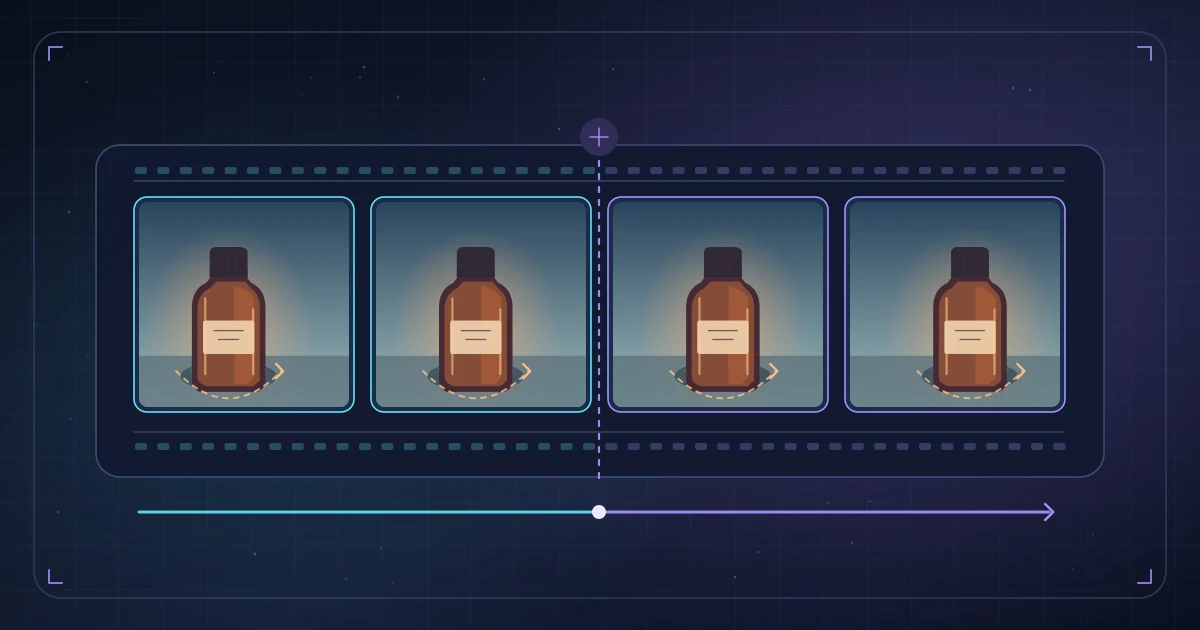
A slow camera move toward an amber bottle is an easy baseline. End while the camera is still moving and the bottle remains sharp. If the bottle is partly out of frame or the shot has already faded, trim a little earlier.
Studio workflow
Set the length and describe the next beat
Open AI Video Extender, upload the trimmed source or use a direct video URL, then pick a model and an extension duration the form supports. For example, compare the short extension options shown for UnboundAI V3, Seedance 2.5 or Grok Imagine. Available durations and controls depend on the model.
Start with one action. “Continue from the last frame. Keep the amber bottle still and maintain the soft light. Move the camera forward at the same speed and settle on a closer view of the bottle.”
Make two short trials with the same source and settings. In the first, ask for the movement to continue. In the second, specify direction, speed and camera. Compare the joins before spending credits on a longer segment.
Compare the source with a longer version
Quality check
Find the change that gives the cut away
| What you notice | What to check | Next change |
|---|---|---|
| Bottle jumps sideways | Compare the first continuation frame with the final source frame. | Trim the source at a clearer frame and name the direction of travel. |
| Camera resets to wide | Check subject scale and background landmarks at the join. | State the same distance and camera movement. |
| Audio clicks or drops | Listen to the join without looking at the screen. | Match ambience or add a short audio crossfade in editing. |
| Color changes | Compare the subject and a neutral patch of background. | State the light direction and color, or match the shots in editing. |
Final assembly
Check whether the result already includes the source
Play the downloaded result from the beginning before editing. If the returned file contains only the continuation, place it immediately after the source and check for overlapping frames. If it includes the original, check the join within that file.
Watch once at normal speed and once frame by frame. If a clean continuation is still difficult, use a deliberate cut to a close-up instead. Keep the audio bed continuous across that cut.
FAQ
Questions before the first run
Is extension the same as slowing the clip down?
Extension generates additional action after a source segment. Slowing a clip stretches existing footage and changes its pacing.
How long should the first test be?
Start with the shortest supported extension that can fit one clear action. Then assess continuity before asking for another segment.
Will the model keep every detail exactly the same?
Visual details and sound can change during generation. Compare the join with the original and make small corrections in your editor when needed.
First run
Try it with your own assets
Load a short clip, set the next action and compare the final second with the start of the continuation.