Before you upload
Decide what each file should control
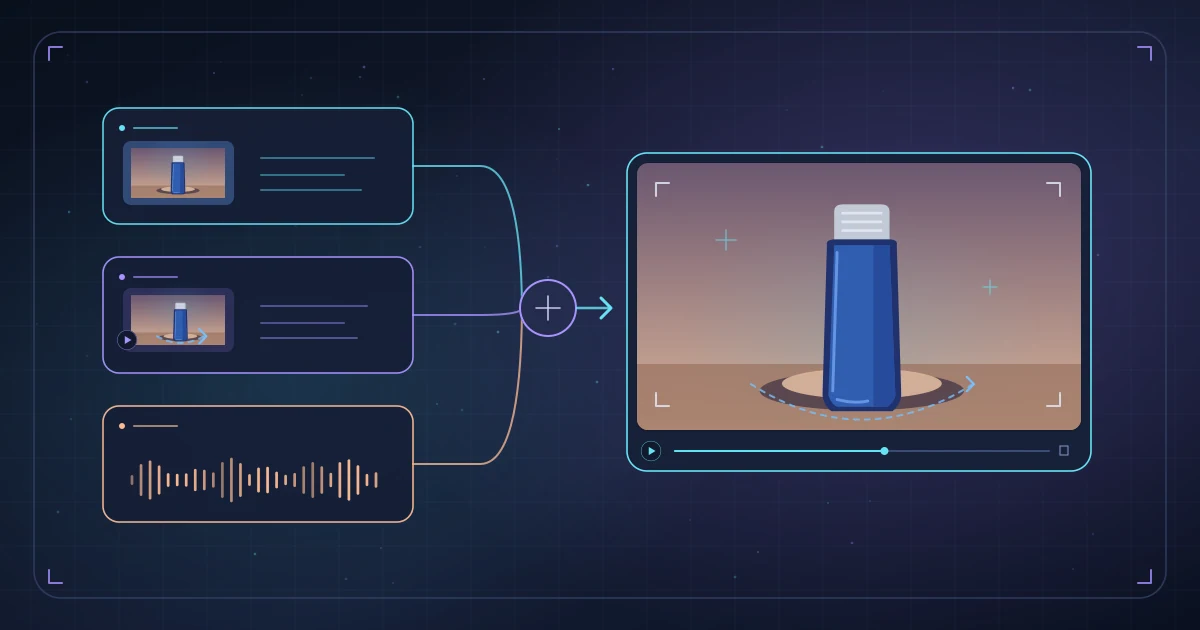
Start with one sentence about the shot. For a product shot, use an image of a cobalt bottle to set its shape and color. Pick a short clip that demonstrates the camera sliding sideways. Add a short audio cue only if you want to plan the move around a specific beat.
Trim reference clips to the movement you need. If the reference contains a cut or an unrelated change in lighting, remove that part before upload. Note the exact moment when the sideways move starts.
Model choice
Choose by input type
| What you have | Where to start | What to verify |
|---|---|---|
| One or more images | Happy Horse 1.0 or 1.1 | The opening frame still looks like your subject and the prompt sets the action. |
| Image plus a motion clip | Seedance 2.0 or 2.5 | The clip controls the movement without pulling its location or wardrobe into the result. |
| Image or clip plus audio | Seedance 2.0 or 2.5 | Decide whether the audio is for timing or for audible output. Review the settings before generating. |
Prompt to try
Write one direction for each reference
Image-only prompt example. “Use the cobalt bottle from the image. Keep the bottle still, preserve its shape and color, and move the camera gently forward.”
To add motion, use this direction instead. “Match the sideways camera move from the clip. Preserve the cobalt bottle and background from the image.” If you add an audio cue, specify when to start or settle the move. For the exercise below, try starting the move around the second click.
Seedance 2.0 has a separate option for assigning image frame roles. That option cannot be combined with video or audio references in this studio. Stay in ordinary reference mode for the mixed-media example.
Compare the camera move with and without reference cues
Review
Compare three moments before retrying
Watch the opening for the subject, the middle for movement and the ending for timing. If the model borrows the background or framing from the clip, shorten the clip and specify its role. If the shape of the bottle drifts as the camera moves, try a clearer image or a smaller move before changing the sound cue.
Keep the first export as a baseline and change just one input on each rerun. Otherwise you cannot tell whether the framing, motion or audio fixed the problem.
FAQ
Questions before the first run
Does an image reference have to become frame one?
In general reference mode it supplies visual guidance. Use the explicit first-frame field when you want to set the opening composition.
Can I use a song as the final audio track?
Reference audio and the final mix are separate decisions. Use an audio track you have permission to use and add the exact track in editing when its timing or sound must be preserved.
Why does the output take colors from the motion clip?
A reference can carry appearance as well as movement. Crop or shorten the clip and explicitly restrict its role to movement and timing.
First run
Try it with your own assets
Try a short shot with an image first, then compare it with a clip or sound reference.