Categories: AI Video Workflow, Creator Strategy, Production Process
Tags: unboundai, ai creation studio, ai video workflow, content strategy, creator toolkit
Introduction
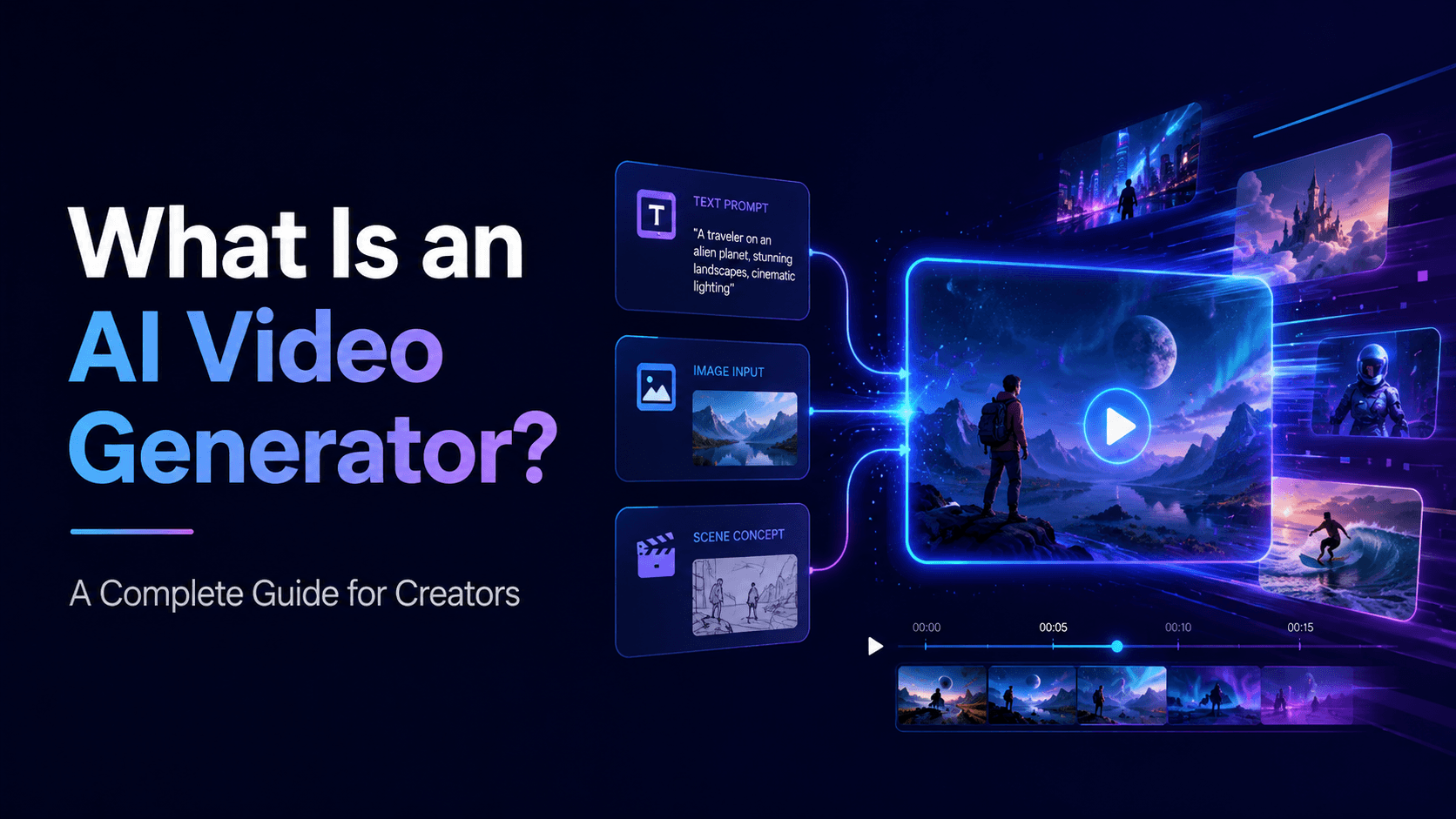
AI video workflows are useful only when they make production clearer, not just faster. This guide explains the core ideas behind What Is Image-to-Video AI? How It Works and Why Creators Use It | UnboundAI and turns them into a practical creator workflow for planning, generating, editing, and publishing video with UnboundAI.
The goal is to keep the source article's structure intact while translating it into decisions a creator can actually use: what the concept means, where it fits in a production pipeline, when it helps, and what to check before calling a clip finished.
Core Content Blocks
1) What Is Image-to-Video AI?
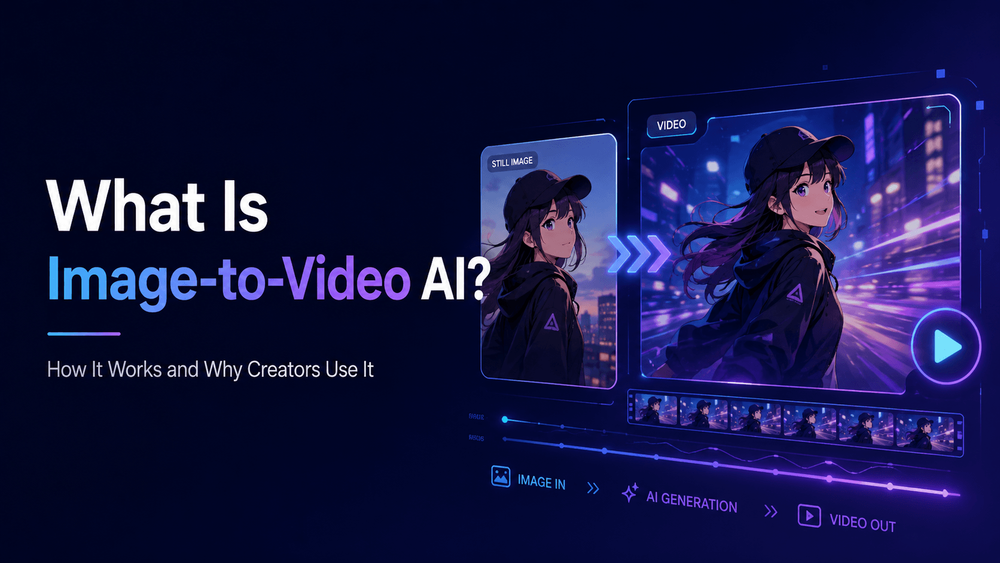
Image-to-video AI is a type of AI video generation that turns a still image into a moving video.
Instead of starting from only text, image-to-video AI begins with a visual input. That input might be a product photo, anime character, comic panel, app screenshot, real estate image, travel photo, album cover, portrait, illustration, storyboard frame, or brand visual. The AI then animates the image based on the creator’s prompt.
2) Why Image-to-Video Is So Useful
Image-to-video AI is useful because it gives creators more control than pure text-to-video. When the model starts from a real image, it already knows what the subject looks like. The creator does not need to describe every detail from scratch.
For example, a creator might upload an anime character image and write:
3) How Image-to-Video AI Works
The creator uploads an image, then writes a prompt describing the desired motion. The AI model uses the image as the visual reference and generates a short video sequence that keeps the image’s subject while adding movement.
“Animate this character with subtle blinking, hair movement, and a slow camera push-in. Preserve the exact face, hairstyle, outfit, and anime style.”
4) Image-to-Video vs Text-to-Video
Text-to-video starts with a written description. Image-to-video starts with a visual reference.
A product marketer might upload a skincare bottle photo and write:
5) Common Image-to-Video Use Cases
One major use case is product advertising. Ecommerce sellers, TikTok Shop creators, Shopify brands, and marketers can turn static product photos into short videos. Instead of shooting every product in a studio, they can create product hero shots, lifestyle scenes, before-and-after ads, unboxing-style clips, and CTA videos.
“Turn this product photo into a premium product video. Preserve the bottle shape, label, logo, cap, material, and proportions. Add soft studio lighting, water reflections, and a slow camera move.”
6) How to Write a Good Image-to-Video Prompt
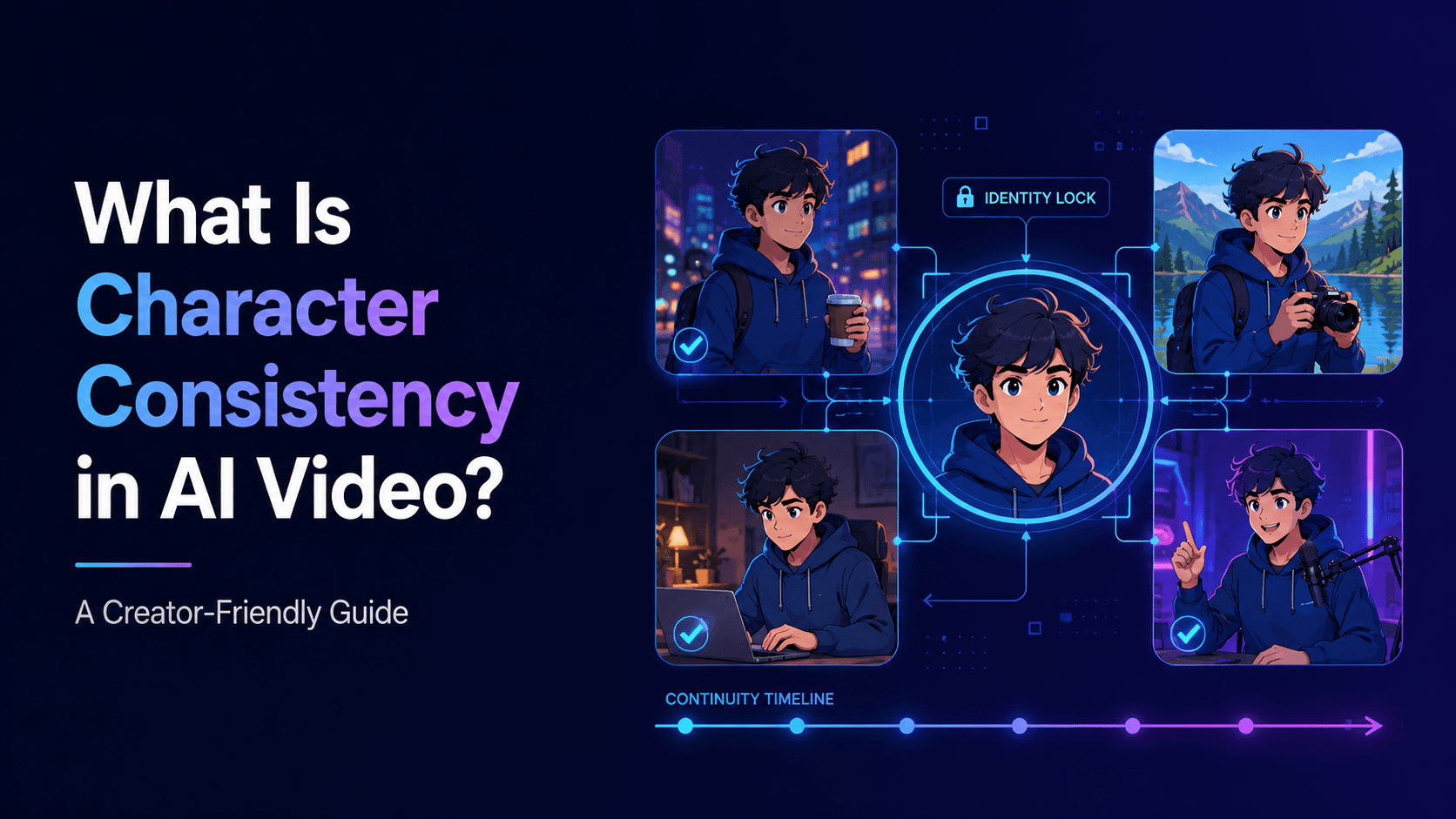
A strong image-to-video prompt should protect the source image first, then describe motion.
“Animate this comic panel with a slow push-in, rain movement, and subtle light flicker. Preserve the original line art, character design, composition, and style.”
7) Common Problems with Image-to-Video AI
Image-to-video AI can still produce errors. The most common problems include face drift, product warping, background distortion, hand issues, style changes, and unrealistic motion.
That is image-to-video AI: using a still visual as the foundation for AI-generated motion.
8) How UnboundAI Helps with Image-to-Video
UnboundAI helps creators turn still images into videos for practical use cases. You can upload a product photo, anime character, comic panel, app screenshot, travel photo, or visual concept, then generate motion from it.
If you are creating a product ad, the product must stay accurate. The logo, label, shape, and packaging cannot randomly change. If you are creating an anime video, the character should keep the same face, hairstyle, outfit, and art style. If you are animating a comic panel, the original composition and line art should remain recognizable.
9) Final Thoughts
Image-to-video AI is one of the most useful forms of AI video generation because it starts from something you already have. It can turn product photos, anime characters, comic panels, illustrations, album covers, app screenshots, real estate images, and travel photos into short videos.
Text-to-video can create interesting ideas, but image-to-video is often better when you already have an asset that must be preserved.
Practical Weekly Workflow
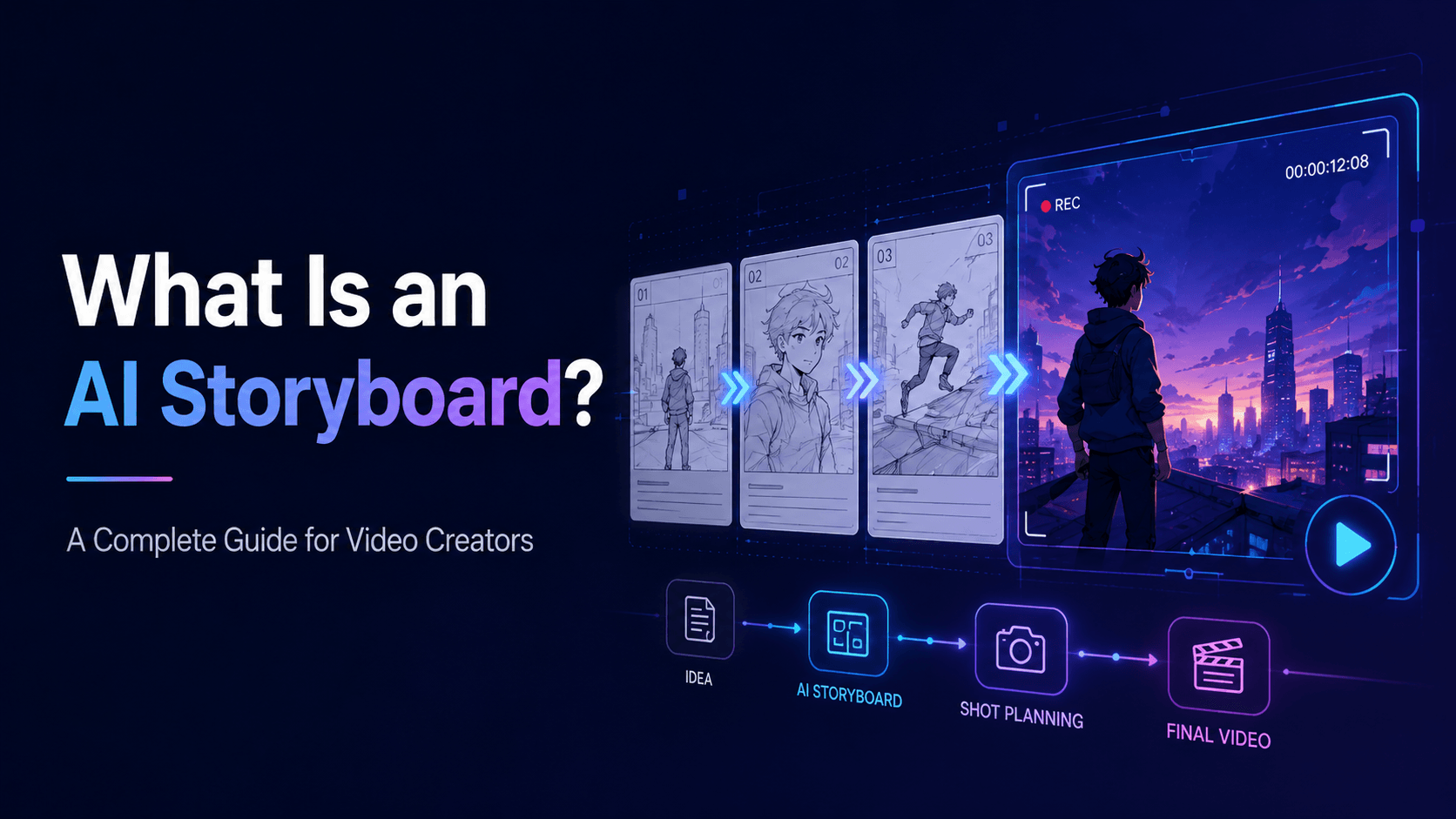
- Define the content outcome first: short ad, story scene, tutorial clip, music visual, product demo, or social post.
- List the required inputs: prompt, reference image, product shot, character design, storyboard frame, script, or audio.
- Generate or edit in small passes instead of trying to finish the whole video in one attempt.
- Review the clip for continuity, pacing, visual clarity, caption space, sound needs, and platform format.
- Save the prompt, source assets, and export settings so the next variation is easier to reproduce.
Conclusion
AI-assisted video work is strongest when it is treated as a repeatable production system. The creative idea still matters, but the workflow also needs clear inputs, controlled iteration, and a review step that turns raw generations into finished communication.
Next Step
Explore UnboundAI workflow templates: https://unboundai.net
FAQs
1) Can this workflow work for a solo creator?
Yes. Start with one repeatable format, keep the asset list small, and improve the workflow after each published clip.
2) Should I generate first or write the edit plan first?
Write a short plan first. Even a simple outline helps you judge whether the AI output supports the final video.
3) What should I check before publishing an AI video?
Check continuity, motion quality, captions, sound, aspect ratio, pacing, and whether the video communicates the intended
idea without extra explanation.
4) How does UnboundAI fit into this workflow?
Use UnboundAI where visual generation or variation is needed, then combine the resulting clips with editing, captions,
audio, and platform-specific formatting.