White Background for Product Photos
Give a product photo a clean white backdrop for a store listing or catalog. Use the AI editor for an existing background, or export a transparent PNG on pure white in your browser.

Example gallery
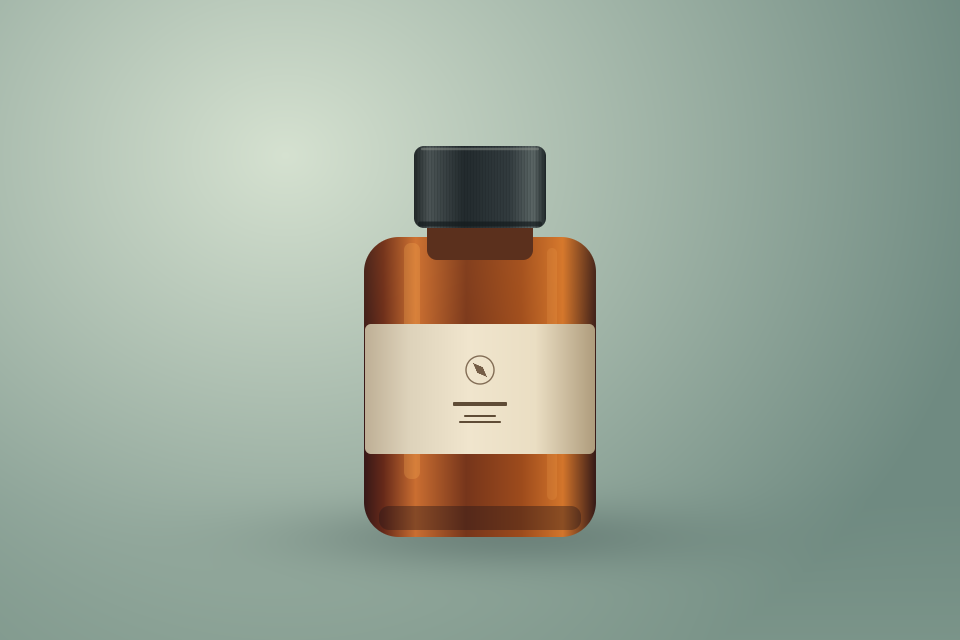
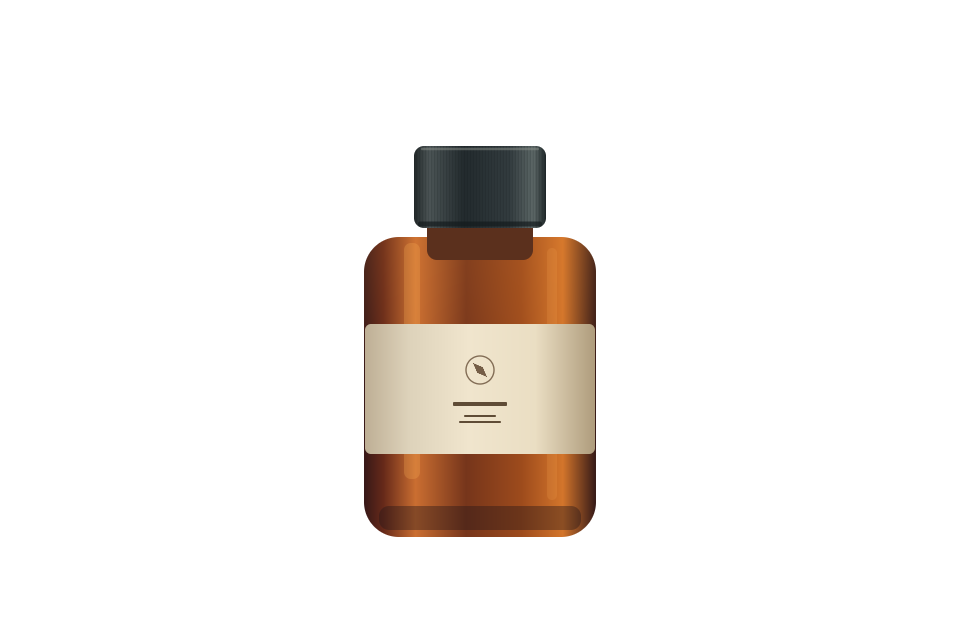
Choose a starting point
Clean catalog white
Ask for a solid white backdrop while keeping the product and its crop.
Use this promptWhite studio with shadow
Keep a subtle contact shadow under the item for a studio look.
Use this promptStudio generation requires an account and credits. The studio shows the price for the selected model and settings.
Export a cutout on pure white
Have a transparent PNG already? Put it on an exact #FFFFFF background and download a PNG. This runs in your browser.
How it works
- 01
Choose the source image
Use a sharp photo with the product edges visible. For a transparent PNG, use the export tool on this page.
- 02
Set the background
Open a preset in the editor, add the photo and generate a variation. Review the product shape, fine edges and printed details.
- 03
Check the final file
For an exact #FFFFFF backdrop, use the local export with a transparent PNG. Confirm any crop or sizing requirements for your store.
Frequently asked questions
Will the AI editor always produce a pure #FFFFFF background?
The AI prompt requests pure white and the result can vary. The local PNG tool composites a transparent cutout onto an exact #FFFFFF background.
Can I use a JPEG in the local white PNG tool?
The local tool takes transparent PNGs. For an existing JPEG background, open one of the AI editor presets.
More solutions
 AI PhotoshootUse one portrait as a reference for a studio portrait, a professional headshot or a casual lifestyle photo. Choose a preset and refine the prompt in Unbound AI.Open workflowProduct Photo to VideoTurn a product photo into a short AI video for a listing, a product page or a social ad. Start with a controlled camera move and a prompt that describes which product details to preserve.Open workflow